Microsoft Power Fx is the formula language used in Canvas Power Apps and Model Driven Apps. Recently, the YAML format...
20 June 2024
Lire cet article en Français
Tips for Getting Started with Power Platform

Microsoft Power Platform is a low-code platform for rapidly building custom, end-to-end business solutions.
It consists of five product areas:
- Power Apps
- Power Automate
- Power BI
- Power Pages
- Copilot Studio
Each area can be used separately or together.
Unified by the underlying Microsoft Dataverse technology, all areas are designed for a connected experience that will help you achieve your goals, whether you are building analytics, process automation, or data-driven productivity applications.
The low-code aspect of Power Platform enables users with no programming skills to develop applications quickly and efficiently.
But if you’re new to the platform, the variety of tools and features can make it hard to get the hang of. It’s important to understand the basics and explore the resources available to familiarize yourself with the capabilities of these different products.
What’s more, you need to follow a few best practices to ensure robust, scalable solutions.
To help you, here’s a list of top tips and best practices I wish I’d known when I first started using Power Platform.
Before Development
Start with MS Learn for the Basics
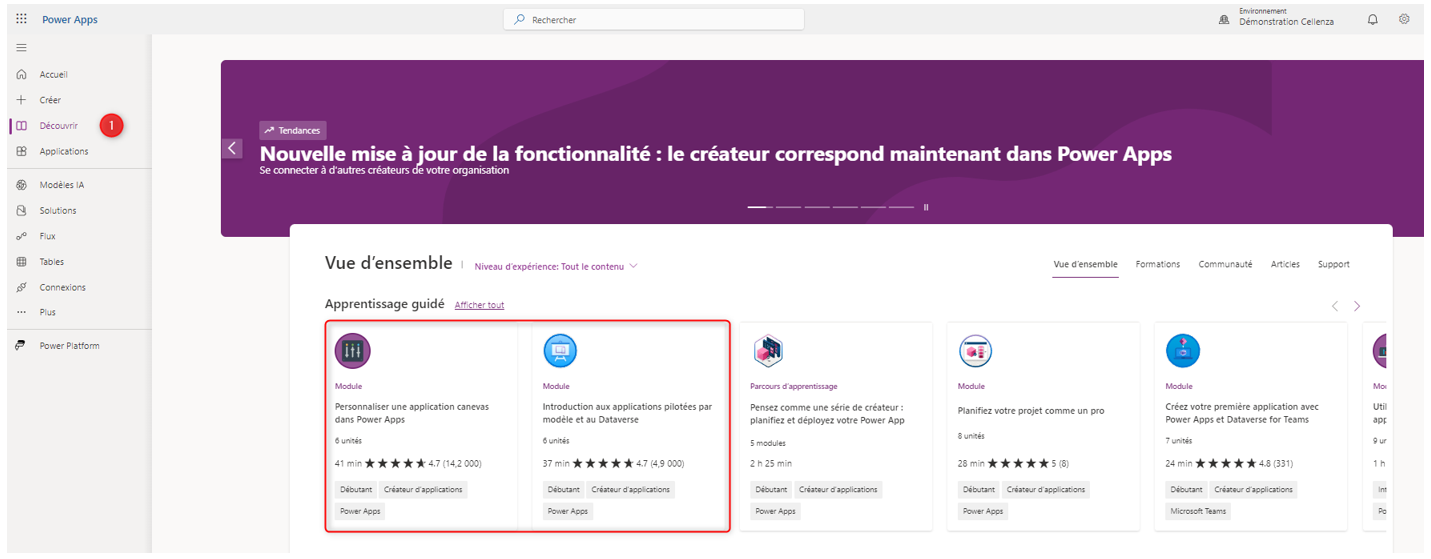
The MS Learn learning paths are an excellent way to familiarize yourself with each of the Power Platform products.
The courses are fun and clear and allow you to measure your progress.
From Power Apps Studio and Power Automate, you can jump directly to training courses with varying levels of complexity.
These paths are also available in the Microsoft documentation.
Don’t hesitate to explore the different modules before you start developing.
Before You Make Any Changes, Check Your Environment
What Is a Power Platform Environment?
A Power Platform environment is a place to store, manage, and share your organization’s enterprise data, applications, chatbots, and workflows. It also serves as a container for separating applications with different roles, security requirements, or audiences. Simply put, it’s a “big storage box.”
How you choose to use environments depends on your organization and the applications you’re trying to build. For example:
- You can choose to build only your applications or chatbots within a single environment.
- You can create separate environments for test and live versions of your applications or chatbots.
- You can create different environments corresponding to specific teams or departments within your organization, each with the data and applications appropriate for each audience.
- You can also create separate environments for your company’s various global subsidiaries.
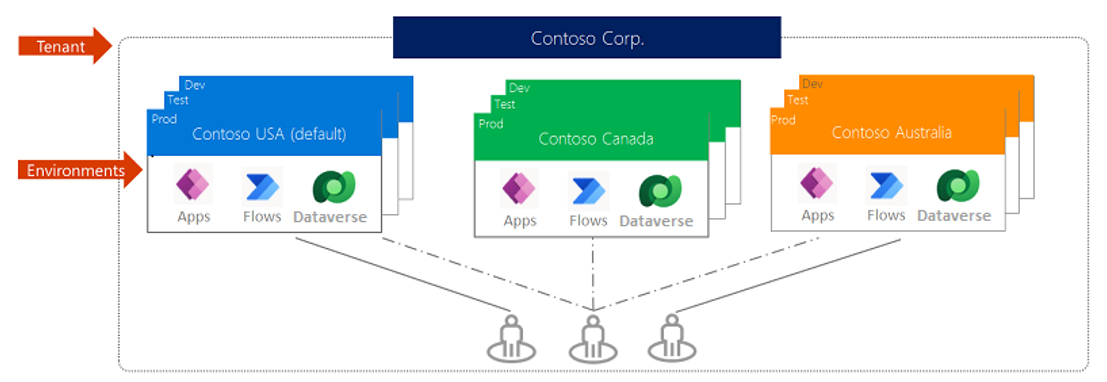
So, when you initialize or modify a project, be aware of which environment you’re in.
As a reminder, you can quickly get information about the environment you’re in from here:

Think about the Application Life Cycle (Avoid the Default Environment)
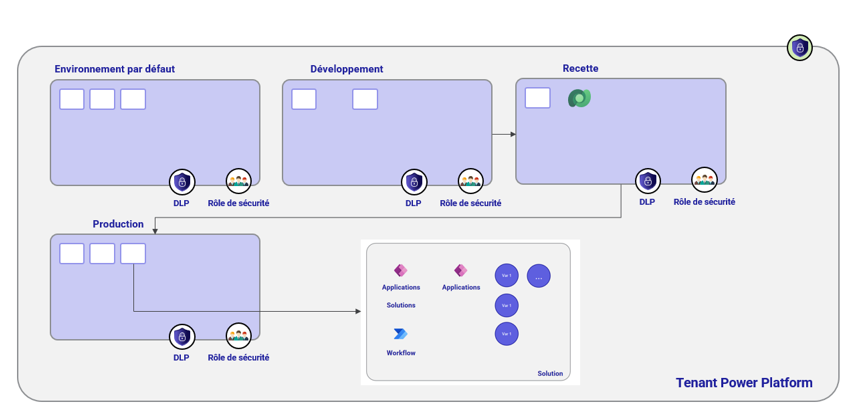
In hindsight, I now advise my clients not to centralize all of the organization’s projects in the default environment.
This is a special type of production environment. Each client has a default environment that is automatically created and cannot be deleted.
The ideal starting point for an organization would be:
- A development environment
- A recipe environment
- A production environment
- The default environment
The default environment is used for training and testing. Projects intended for production use are initialized in the development environment and then migrated to the test environment for evaluation.
If the application passes the tests, it is transferred to the production environment.
This allows for environments dedicated to each need, with configurable access and the ability to fine-tune security on each of them.
Think in Terms of Solutions at the Beginning of a Project
What Is a Solution?
Solutions transport applications and components from one environment to another, or to apply a set of customizations to existing applications. A solution includes one or more applications and other components such as site maps, tables, processes, Web resources, choices, workflows, etc.
An environment can contain multiple solutions. Visually, think of “little boxes inside a big box.” Each little box is the solution and corresponds to a project.
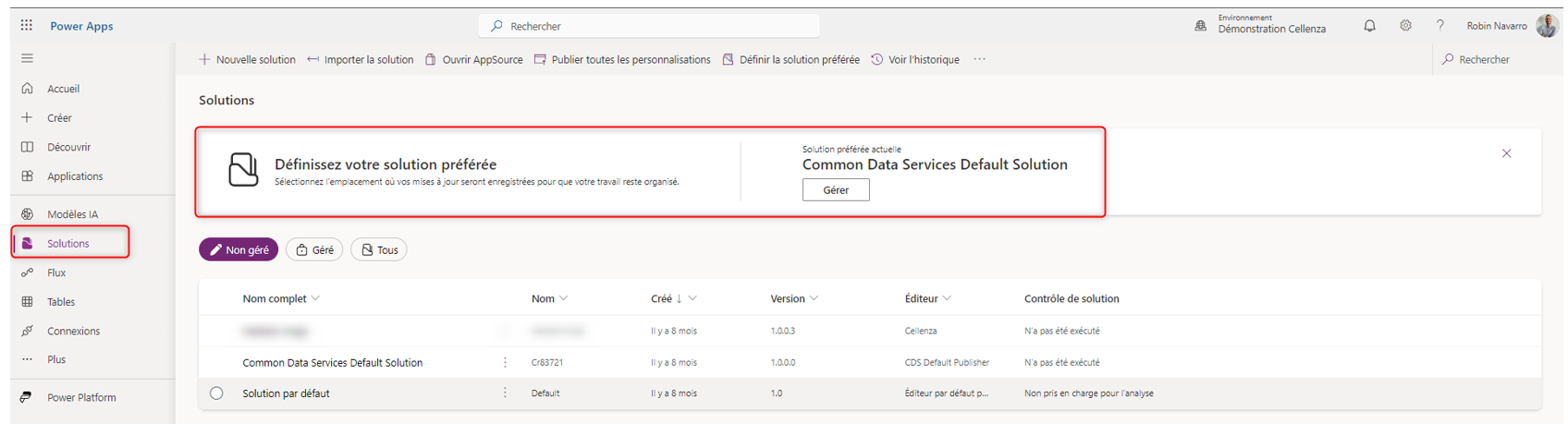
Always remember to create a solution at the beginning of your project and add the elements that make it up inside. This allows you to centralize all project elements and quickly export them from one environment to another. This is convenient for switching between test and production environments.
A new feature lets you define a preferred solution and automatically add all newly created elements to that solution.
Properly Identify Needs and Expected Functionality
Identifying the needs of the project is critical to its success. To have all the information about the project and ensure a win, I recommend the “Lego” method, which I apply to each of my projects:
- Identify all project stakeholders: Who is the project for? Who is the requesting party? Who decides?
- Get them talking to identify/formalize expected functionality and break down the whole process. Understand how they work now and ask how they’d like things to work in the future. A thorough understanding of how they work will enable us to define the right solution.
- Use personas to define key user profiles. Each role has its own actions and rights and needs to be correctly identified.
- Create a mock-up to help stakeholders visualize the future solution based on the information gathered earlier.
- Create clear, concise documentation summarizing all your needs and the proposed solution to be implemented: This will be your project’s instruction manual. You have then identified the Lego pieces and have a clear idea of what you need to build.
- Once the instructions have been completed and validated by the business side, apply them page by page. Congratulations, you have your Lego.
Not All Connectors Are Free
Identifying the database the project will connect to and the total number of users means anticipating the licenses required and the associated costs of the project.
A connector is a component that represents the link between an external data source or service and Power Platform. Connections are numerous and include the following: SharePoint, Dataverse, Salesforce, SQL, OneDrive, DocuSign, Teams, Excel and even Outlook.

Connectors can be divided into three categories:
Standard Connectors
These do not require a special license (an Office 365 license is all you need). They cover the most commonly used data sources/services in the O365 world, such as SharePoint, OneDrive, Outlook, Teams, and Excel.
Premium Connectors
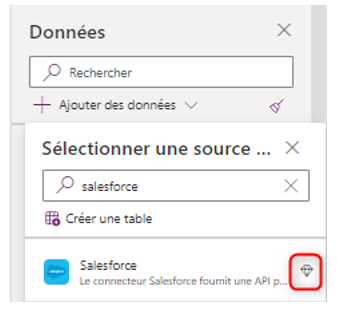
Available only if you subscribe to an additional licensing plan (Power Apps Premium/Per App/Pay as you go or Power Automate Premium). They primarily cover external services/data sources such as Salesforce, DocuSign, SQL, Survey Monkey, Dataverse, etc.
A diamond icon helps you identify them quickly.
Custom Connectors
Some APIs, services, and systems are not available through predefined connectors.
To handle these situations, you can create custom connectors with their own triggers and actions.
However, they also require a premium license.
During Development
Use a Naming Convention
Using a naming convention in Power Apps is essential to maintaining consistency and clarity in the application, making the code easier to navigate and understand for all developers.
It also helps avoid confusion and potential errors when adding or modifying features, resulting in easier maintenance and higher application quality.
I personally recommend using the naming convention suggested by Emmanuel Gallis, Power Platform MVP. The convention can be summarized as follows:
- For screens: a clear, meaningful name for what it contains, no abbreviations
- Controls: no spaces, no special characters, accented characters allowed
- A unique name for each control
- Systematically add a screen code suffix to the names of your controls to clearly identify their location in the application
- For a control: xxxMyControl_YYY (xxx=control type, YYY=screen code)
- For a variable: xxxMyVariableName[_YYY] (xxx=variable type, YYY=screen code, optional)
Screen name examples:
- Home (HME)
- Product list (PL)
- External client edition (ECE)
Control name examples:
- lblEnterFirstName_HME
- galProductList_PL
- frmModifProduct_ECE
Variable types:
- glo = global variable defined with Set()
- loc = local variable defined with UpdateContext({})
- col = collection defined with ClearCollect()
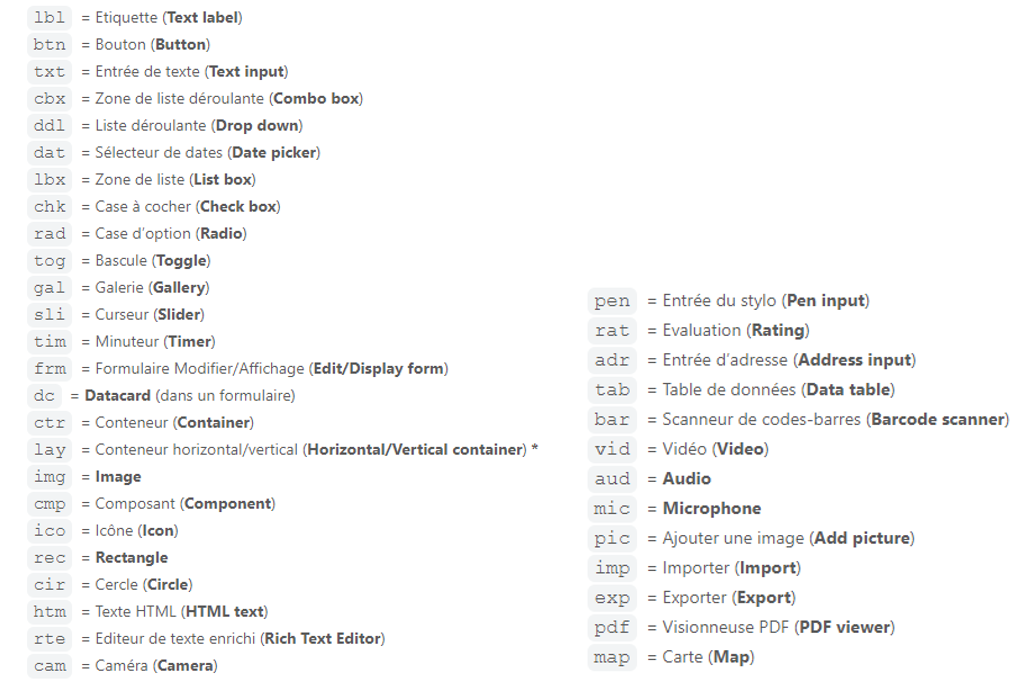
The list of prefixes by control type is as follows:
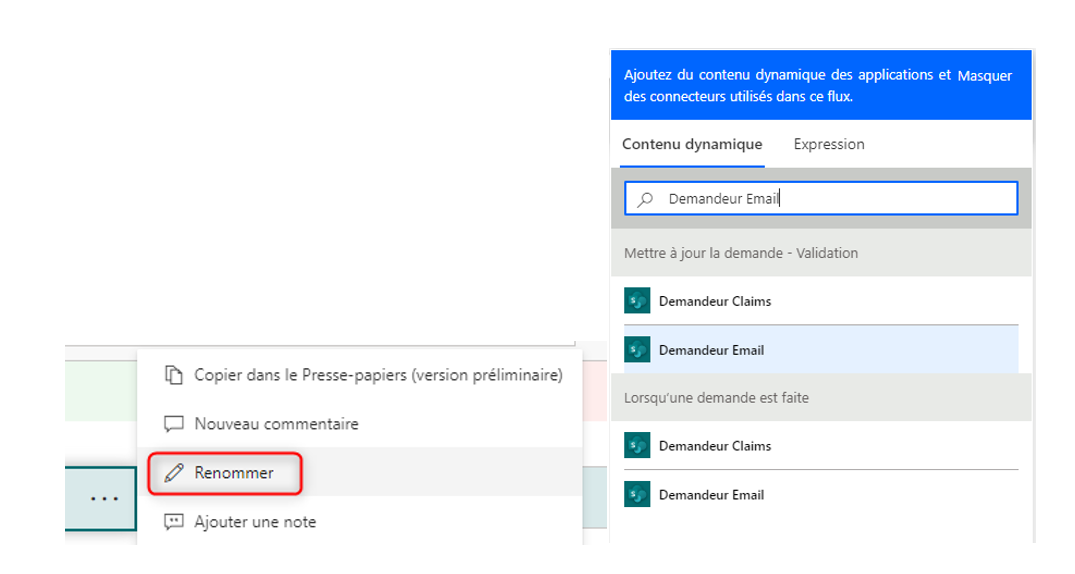
In Power Automate, Remember to Rename Your Actions
Renaming your Power Automate actions is critical to maintaining an organized and understandable workflow structure, making identifying and correcting errors easier.
What’s more, other users can easily understand the purpose of each action, promoting efficient collaboration and simplified workflow maintenance.
A correctly renamed flow is twice as easy to understand as a flow with no explanation.
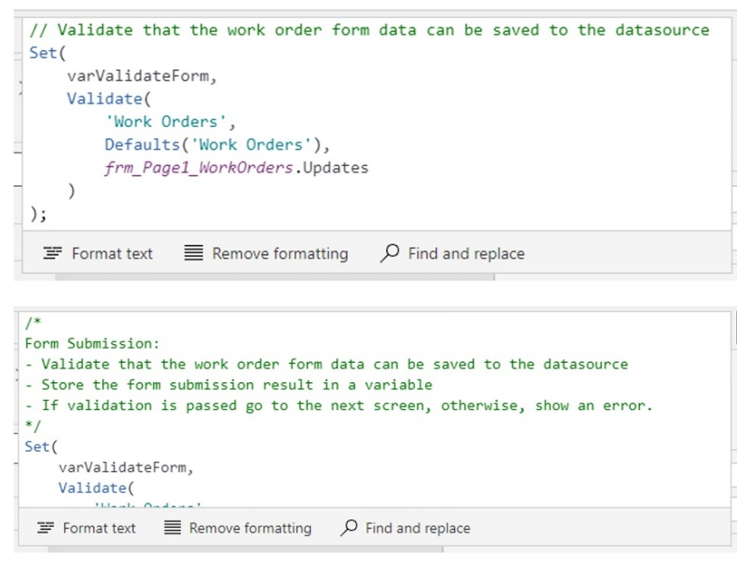
Remember to Comment Your Power FX Code
Commenting your Power FX code is essential to ensuring a clear understanding of how it works. This makes it easier to maintain and evolve over time.
What’s more, comments allow other developers to quickly understand your intentions, which promotes efficient collaboration and reduces potential errors in future code changes.
Write comments that describe the intent of a section of code without repeating what the line does. Remember to maintain them as you make changes, and limit their number.
My commenting method is as follows:
- On a separate line above the section of code they are describing.
- Not on the same line as the code.
- In complete sentences, using simple language.
What to Do If You Get Stuck
It’s not uncommon to get stuck when you’re new to Power Platform. This platform offers a huge number of features, and it’s hard to get to grips with them all.
If you have a problem or doubt, there are four possible scenarios:
- The answer is probably on the Internet
- It’s a product bug
- The product can’t do that
- You are the first to encounter the problem
To find out which scenario you’re in, I suggest you explore the following links:
- The 100% French community site about Microsoft Power Platform: Power Platform French Community at https://ppfc.fr/
- The Microsoft forums: by describing your exact problem in Google
- On YouTube via these three dedicated PP channels (new products/design ideas/code explanations, etc.): Reza Dorrani, Shane Young, April Dunnam
- Power Platform-specific blogs, including Matthew Devaney’s excellent blog: https://www.matthewdevaney.com/
These four resources provide answers to 90% of the questions I ask myself during my projects.
Reduce the Number of Controls on Your Screens
Limiting the number of controls on a screen in Power Apps is important to ensure a fluid and intuitive user experience and avoid information overload, which can make it difficult to navigate the application.
It’s also important for better application performance, as many controls can slow screen loading time, consume more memory, and reduce overall application efficiency. Therefore, try to design your screens with as few controls as possible.
If you don’t have a choice, consider splitting the display across multiple screens.
Look At How Others Do It
Defining and proposing the design of an application is not an innate skill, nor is it necessarily part of the skill set of an aspiring developer.
To discover recommendations or simply get some ideas for Power Apps design, I recommend getting inspired from:
- Reza Dorrani’s YouTube channel
- MVP blogs and LinkedIn posts from the PPFC community
- All the apps you use every day
- Opening predefined Power Apps templates

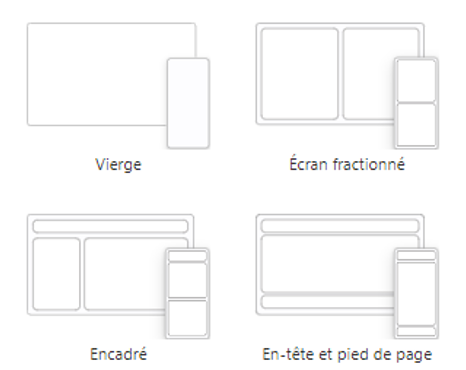
- Screen templates suggested directly when you create screens in Power Apps :
After Development
Test Your Applications and Flows over and over Again
According to Edward A. Murphy Jr., “If there are at least two ways to do something, and of those ways is likely to result in disaster, someone somewhere is bound to choose that way.”
Before proceeding to the testing phase, test your applications to anticipate errors caused by user inattention, misunderstanding/manipulation, or even a desire to bypass certain protections.
As a user of your application, imagine these scenarios:
- I’m trying to save my form without filling in all the required information.
- I’m forcing values or files that are not supported.
- I’m trying to access data I’m not authorized to access.
- I’m clicking absolutely everywhere in the application.
- I’m trying to access the data source directly.
These tests will enable you to test the robustness of your application and perhaps identify areas where security needs to be improved.
Sharing the App Is Good, but Sharing the Data Source Is Better
During the UAT (User Acceptance Test) phase, the application leaves the development environment and migrates to the acceptance environment.
Once you have migrated, I always recommend checking that you have:
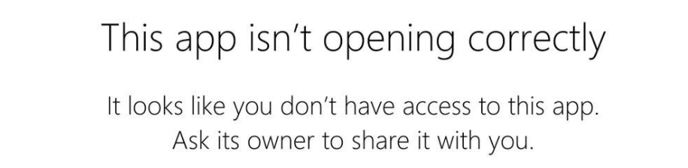
1. Shared your application directly from Power Apps.

A user who tries to access the application without it being shared with them will get the following message:
2. Shared database access and rights directly from your data source.
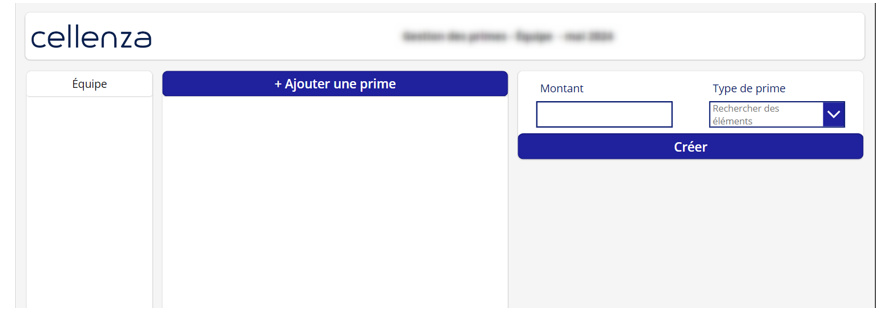
A user who does not have rights to the database associated with the application but with whom the application is shared will be able to access it.
However, the application does not contain any data, and the user will not be able to interact with it.
Performance testing in Power Apps is critical to ensuring a smooth and efficient user experience, as it helps identify and resolve any latency or load time issues that may frustrate users.
A frustrated user will be reluctant to use the application and will be a poor ambassador.
In addition, these tests ensure that the application can handle a high volume of concurrent requests, which is essential for maintaining application reliability and availability.
Before moving to the acceptance phase, check how long it will take your application to perform these common actions:
- At application launch
- When navigating between pages
- When filtering data
- When a record button is pressed
If the delays are too long, consider optimizing your code, limiting code execution at application startup, limiting the number of controls, and using the Power Apps Monitor.

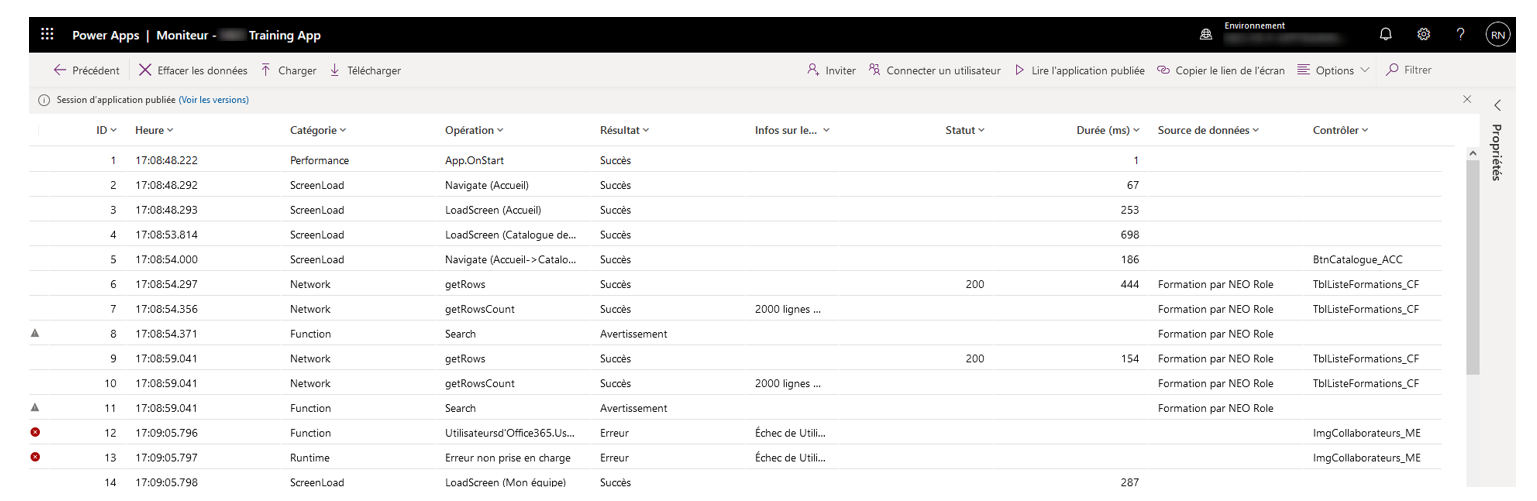
The latter allows you to track events as they occur in a canvas application during use and identify any problems.
Power Platform: Key Takeaways
As a citizen developer myself, I taught myself about Power Platform and built my skills using the resources I’ve shared with you here.
Learning Power Platform does not come naturally: it is not innate, but this solution is still accessible to people who do not necessarily have years of study in IT.
The tips I’ve shared here are things I’ve learned from my ongoing skills development, my projects with Cellenza, the work I’ve done for my clients, the training and certifications I’ve taken, and all the people I’ve met.
Many of the resources created by the Power Platform community are available to help you learn the basics, familiarize yourself with the tools, and help you if you get stuck. Use them.
My final piece of advice is to read, test, explore, and be curious. You’ll progress quickly!
Do you need help on your IT project with Power Platform? Contact us!