In this fifth and penultimate article in a series devoted to the benefits of having an integration platform within an...
16 January 2024
Lire cet article en Français
Web API Migration from .NET 6 to .NET 8: A Retrospective

The release of .NET 8 in November 2023 has been a long-awaited moment for many developers. Being keen to stay at the cutting edge of technology, I decided to migrate my Web API from .NET 6 to this latest version.
The aim of this retrospective is to share the steps taken, the challenges encountered, and the lessons learned throughout the migration process.
Prerequisite: an up-to-date Visual Studio environment
I began by updating my development environment (Visual Studio 2022) to ensure optimum compatibility with the latest .NET 8 features.
Pre-migration: ensuring the .NET 6 application is up to date
Before migrating to .NET 8, a crucial first step is to ensure that your application is up to date in its current Framework. This means updating your dependencies and making them compatible.
Taking this precaution serves two major purposes:
- Correcting existing incompatibilities
- Limiting potential post-migration errors
Correcting incompatibilities in a controlled environment
By reviewing and updating NuGet packages for .NET 6 projects, you’ll have the opportunity to remedy current incompatibilities in a controlled environment. This involves identifying and resolving deprecated or obsolete methods, which are likely to be removed and to create problems when migrating to .NET 8.
Reducing post-migration errors
By keeping NuGet packages up to date in the .NET 6 project, you reduce the risk of post-migration errors. Updating beforehand means you can avoid potential conflicts or compatibility problems that are not directly linked to the Framework version change. This makes the migration process smoother and less prone to errors.
By following this preliminary step, you create a stable, prepared foundation for migration to .NET 8, minimizing potential complications and ensuring a smoother transition to the new Framework version.
Using an internal framework
If you have your own Framework, it’s a good idea to run the same checks on it to make sure it’s up to date too, even if your own packages will be mostly compatible without modifications.
They should be migrated to offer a .NET 8 version (Version 8.0.0 if you’ve opted to use the same numbering as Microsoft).
Viewing breaking changes in .NET 8
Although it follows on from .NET 7, the .NET 8 Framework still comes with some breaking changes.
To identify them, you should read the official .NET 8 compatibility documentation provided by Microsoft: Breaking changes in .NET 8
If you’re aware of these changes in advance, you can anticipate the adjustments needed for a successful migration to .NET 8 and maintain the stability of your applications by paying particular attention to them after migration.
Changing the target Framework
I started the migration to .NET 8 by adjusting the target Framework in the properties of each of the projects in my solution:


Once the target Framework has been modified, NuGet packages specifically targeting the .NET 6 version must be updated to make them compatible with the new Framework.
This mainly applies to Microsoft NuGet packages, for which the major version corresponds to the target Framework.
| Version | Target framework |
| V 6.X.X | .NET 6 |
| V 8.X.X | .NET 8 |

Development and testing
Aside from a few errors specific to the context of your business, by preparing ahead of time and making these adjustments to projects and dependencies, you’ll quickly have a version that can be compiled and run locally.
You can then run your unit tests and check that everything is running smoothly via manual functional tests.
Depending on your situation, if you’re using an object-relational mapper like Entity Framework, you should do tests on creating a migration and modifying a database:
Add-Migration -Name Test -Project Projet.Data
Update-Database
Error during Continuous Integration with Azure DevOps
Once the solution is fully functional locally, it’s natural to want to upload changes to Azure DevOps, via Continuous Integration.
When compiling, however, the server returns an error because it’s currently unable to compile .NET 8. To solve this problem, you need to update the SDK:
https://aka.ms/dotnet/download.

##[error] The nuget command failed with exit code(1) and error (C:\Program Files\dotnet\sdk\7.0.403\Sdks\Microsoft.NET.Sdk\targets\Microsoft.NET.TargetFrameworkInference.targets(160,5): error NETSDK1045: The current .NET SDK does not support targeting .NET 8.0. Either target .NET 7.0 or lower, or use a version of the .NET SDK that supports .NET 8.0. Download the .NET SDK from https://aka.ms/dotnet/download [D:\a\1\s\XXX\YYY.csproj])
##[error]Packages failed to restore
Problem management on Azure App Service
For me, Continuous Deployment went without a hitch. However, the application wouldn’t work when I tried to use it, and the Azure App Service gave me the “HTTP Error 500.31” error page:

This error message revealed problems with the App Service’s support for .NET version 8.
On the App Service console, I used the “dotnet–info” command to find out what version was installed.

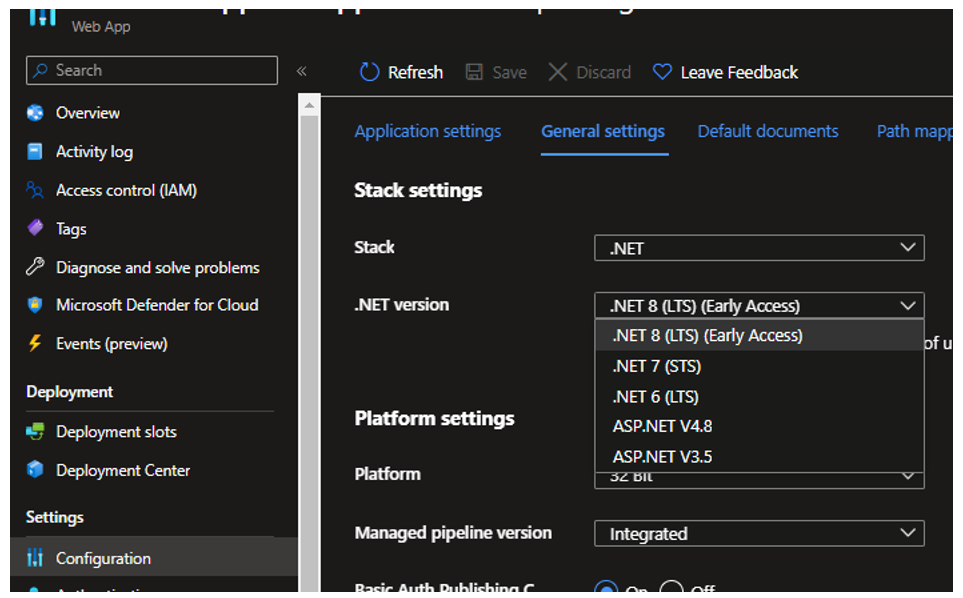
To update the configuration, I went to the “Configuration” tab, then “General settings,” where I could change the .NET version used:

Modification via Terraform
Stack and .NET version changes can also be made in a Terraform configuration. For an “azurerm_windows_web_app” resource, this is done by specifying the “dotnet” Stack with the desired version: v8.0.
site_config {
    application_stack {
      current_stack  = "dotnet"
      dotnet_version = "v8.0"
    }
}
Everything you need to know is in Terraform’s documentation: Manages a Windows Web App
New features in .NET 8
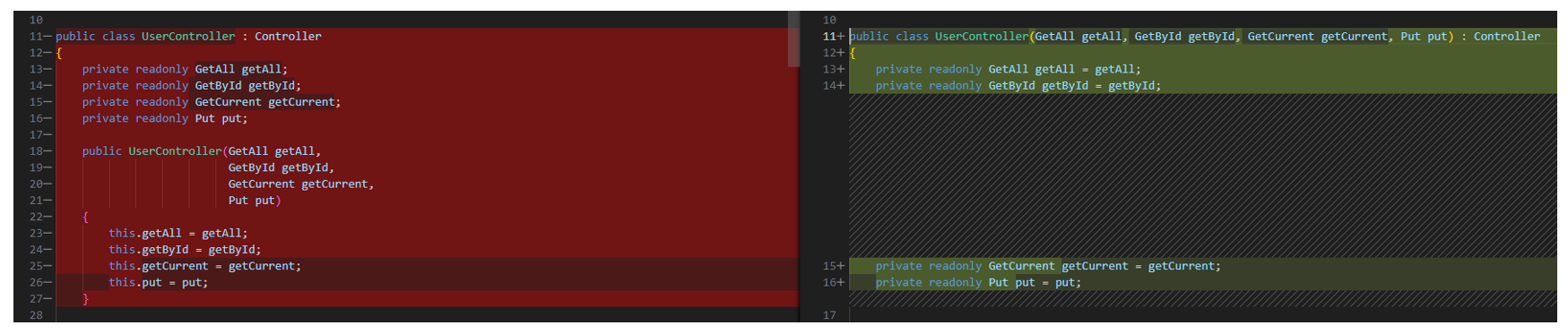
Once migration was successfully completed, I was able to explore the new features of .NET 8. I’m particularly impressed with the use of the primary constructor, a feature that improves code readability.
You can find a complete list of the new .NET 8 features in Microsoft’s official documentation: What’s new in .NET 8.
Takeaway: an instructive migration
In conclusion, migrating a Web API from .NET 6 to .NET 8 was a learning experience. By combining Microsoft’s official documentation with resources from the .NET community, I was able to successfully navigate through the migration steps. Proactive problem management and regular updates were key to the success of this transition, opening the door to a more modern, high-performance development environment.
Would you like to learn more or get some expert help? Contact us!