Introduction Integrating security into a widely used platform like GitHub is both a challenge and an opportunity to enhance its...
30 January 2024
Lire cet article en Français
Federated Credentials: How to Deploy an Azure Pipeline without Secrets or Certificates

Historically, DevOps professionals have used secrets or certificates to authenticate their Microsoft Entra ID applications and services (source).
Starting in 2023, Microsoft Entra ID provided federated credentials for authentication and access to Azure or Microsoft Graph.
This new method is based on the OpenID Connect (OIDC) protocol.
Federated credentials don’t expire like secrets and certificates. Because of this, they don’t need to be renewed.
In addition, federated credentials allow Microsoft Entra ID to establish a trust relationship with an external identity provider (such as GitHub, Google, or others). This means that an identity cannot be stolen (unlike a leaked secret).
This post will look at how to use federated credentials to log into Azure DevOps and GitHub factories.
Requirements for Creating a Federated Credential
You need sufficient permissions to create and edit an app registration in Microsoft Entra ID to create a federated credential.
In the Azure portal, open the app registration you want to use to log in. We’ll use the “demo-cellenza-blog” app registration as an example in this post.
This app registration will have Reader (or Contributor if necessary) role-based access control (RBAC) within a SUB1 Azure subscription.
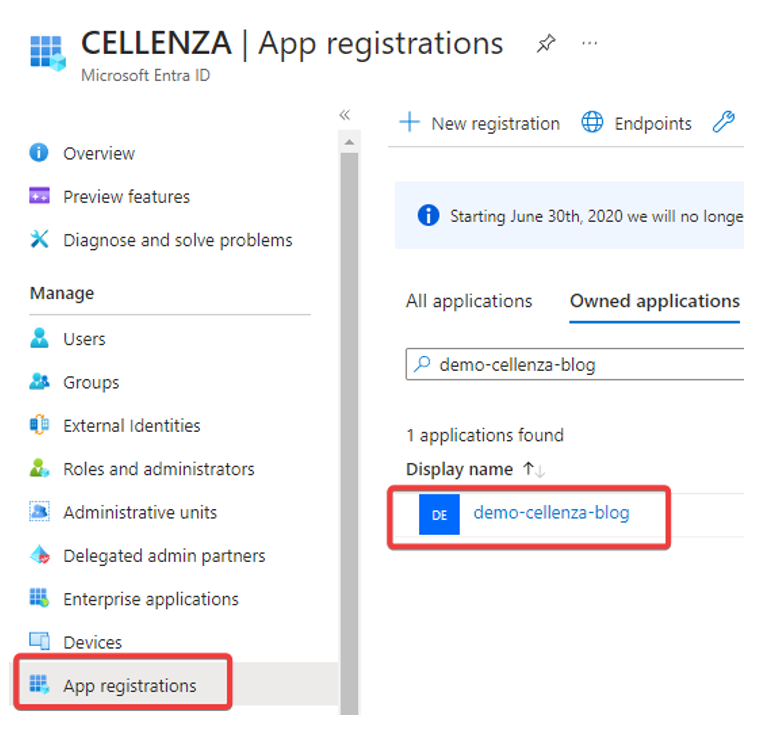
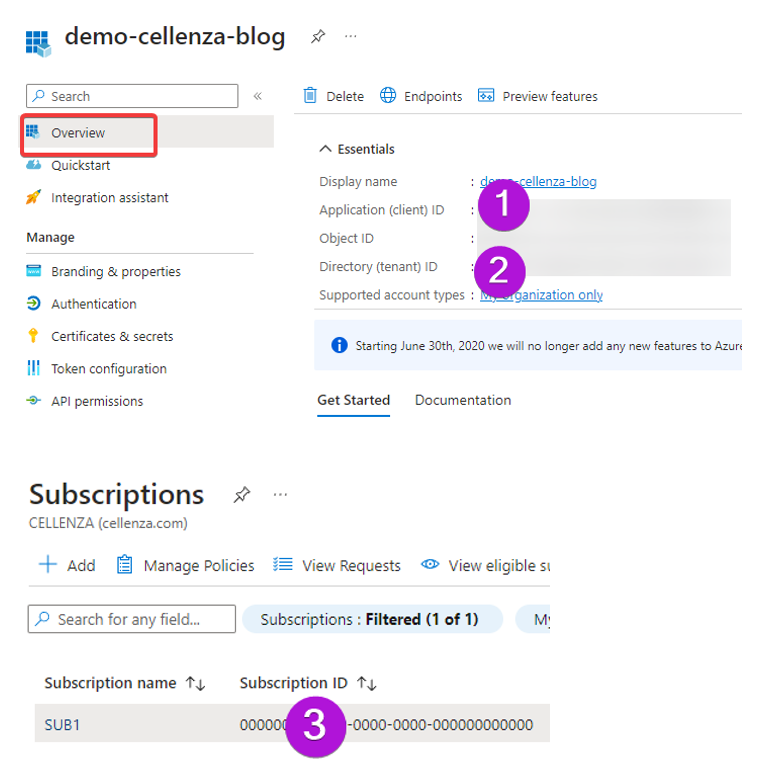
We’ll need to gather the following information from the Azure portal:
- App registration identifier (application ID) (also known as the service principal ID)
- Tenant identifier (tenant ID)
- Sub1 subscription identifier (subscription ID)
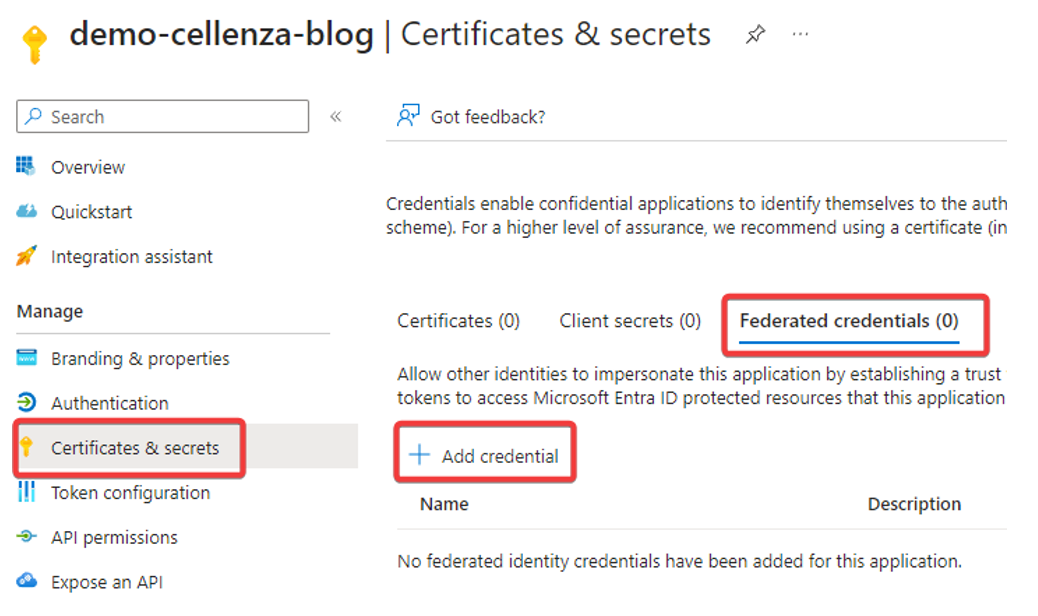
Next, go to the Federated credentials tab in the Certificates & Secrets menu. You will then be able to add a new credential.
Azure DevOps

In this section, we’ll look at creating a service connection authenticated in Microsoft Entra ID using federated credentials.
Once you’ve logged in to your organization’s Azure DevOps portal, you need to choose the project you want to work on.
You can then select the project settings on the project page.

You can create a new service connection in the Service connections section.
Select Azure Resource Manager.
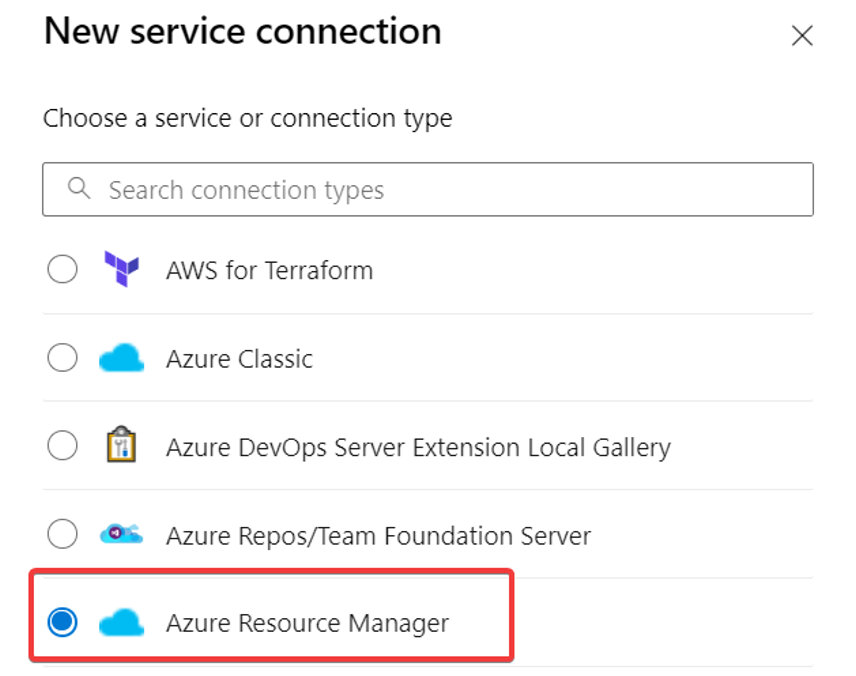
Next, select Workload Identity federation (manual).
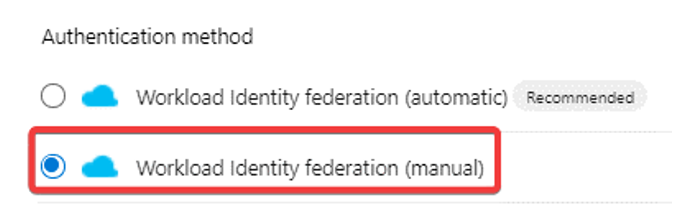
Note: Azure DevOps recommends using automatic mode to create a workload identity federation. This is a better choice than manual mode because it will automatically generate an app registration in Microsoft Entra ID and register the information from Azure DevOps. However, this may not always be possible if the app registration already exists or the user does not have permission to create app registrations, for example.
After you name your service connection, you will see a new screen with the Microsoft Entra ID information you need to fill out.
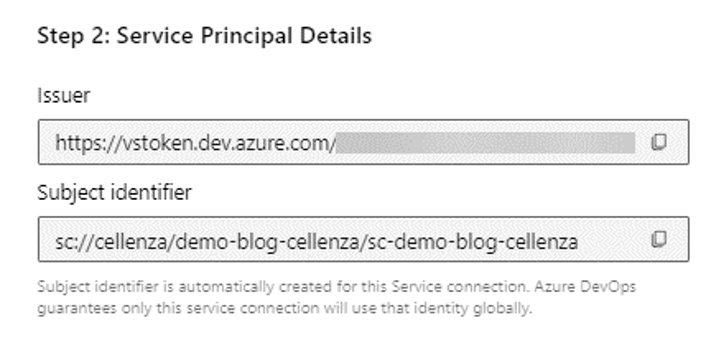
To continue, we must return to Microsoft Entra ID and enter this information into the newly created credential.
First, select Other Issuer as the scenario. Next, enter the two identifiers provided by Azure DevOps.
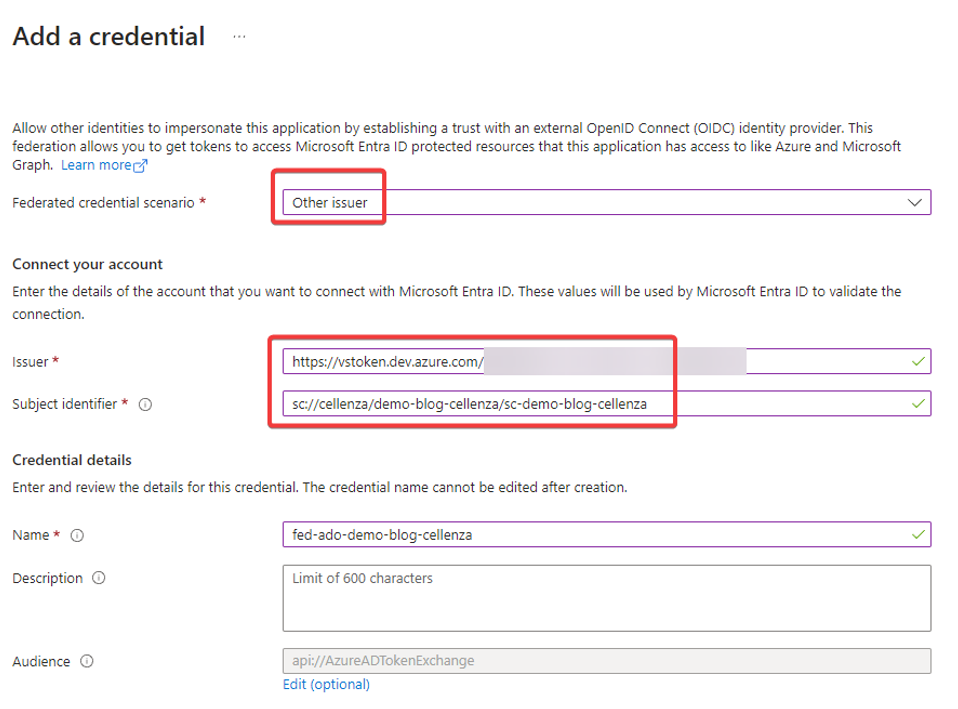
You can then return to Azure DevOps to finalize the service connection.
Next, you can fill in the authentication information using the data collected in the requirements.
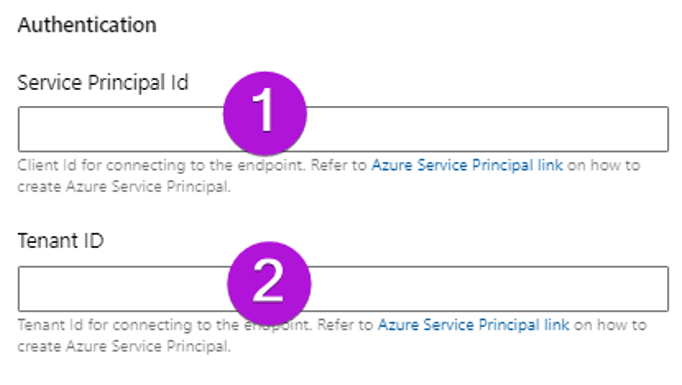
Finally, the Verify and Save button completes the creation of the service connection and verifies that the connection works with the SUB1 Azure subscription.
Azure DevOps pipelines can now use the service connection.
Testing the Service Connection in a Pipeline

We are going to create a pipeline to test this service connection.
It can then be run by approving use of the service connection.

The pipeline successfully used the federated credential to connect to Azure.
Federated Credentials with GitHub

In this section, we will look at how to use federated credentials to authenticate a GitHub Action in Microsoft Entra ID.
You will need to get the organization name, repository name, and branch name containing the GitHub Action from GitHub.
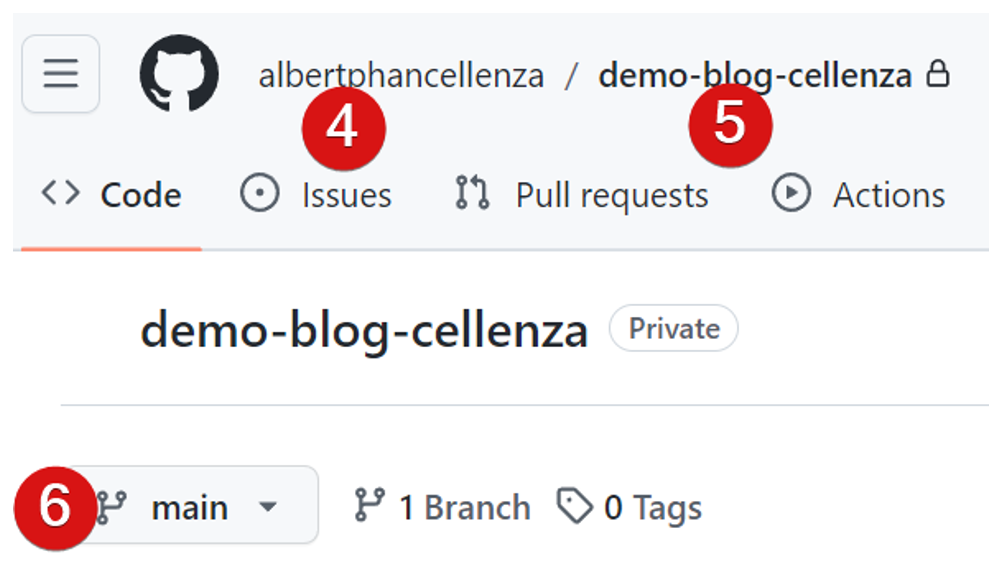
After that, we can go back to Microsoft Entra ID to create our federated credential.
We select the following scenario: GitHub Actions deploying Azure resources.

We need to give the credential a name before we can save it.
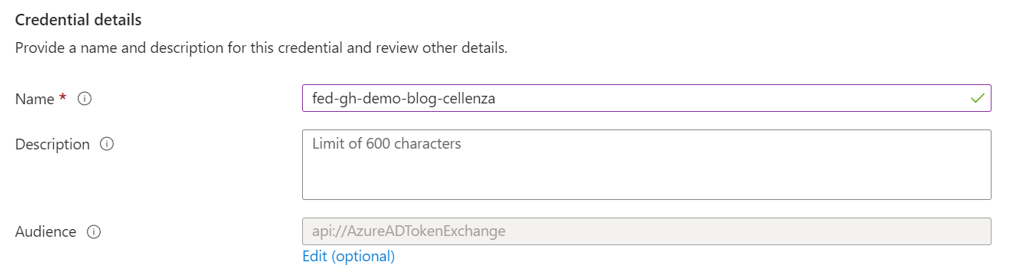
After that, we can go back to GitHub to finish setting up the authentication.
Note: We won’t talk about the other Entity Types, but you can also target environments. Instead of targeting a specific branch, the Environment type lets you target an environment with its associated protections (like reviewers and a wait timer). You will need a Pro, Team, or Enterprise license or a public Git repository to use it, though.
We can go to the Settings page, select the Secrets and variables tab, and then add the IDs we collected in the requirements.
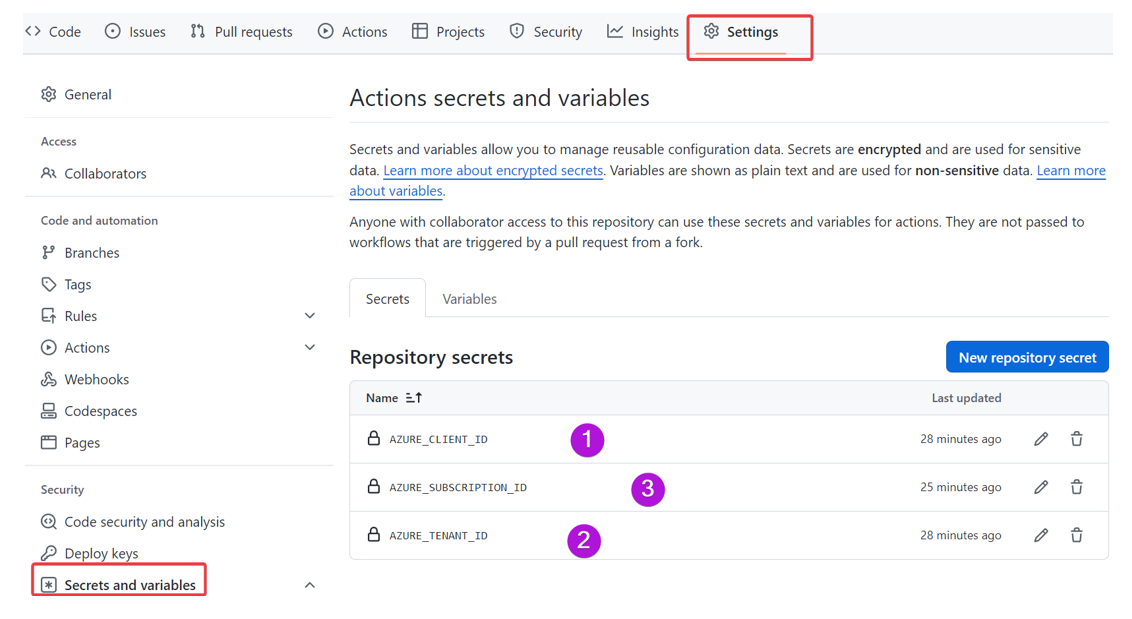
We can now connect our GitHub Actions to Azure using the federated credential.
Testing the Connection to Azure Using GitHub Action

This file can be used to create a GitHub Action: demo-blog-cellenza/.github/workflows/workflow.yml
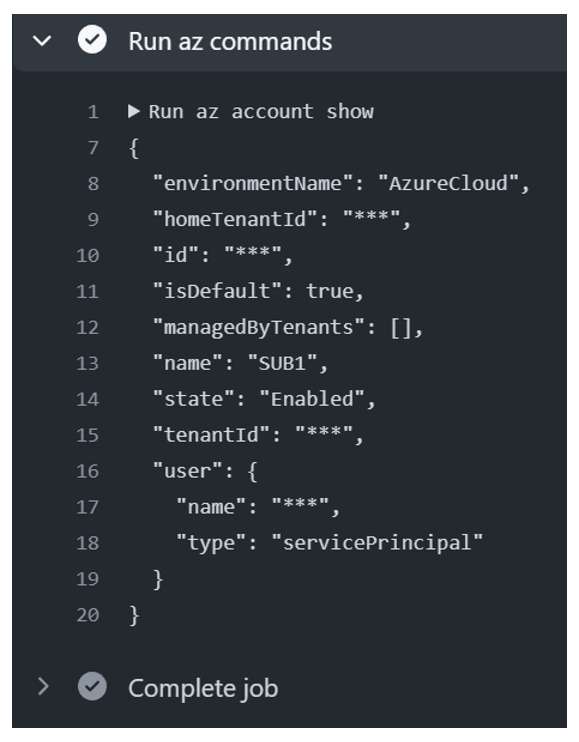
The pipeline successfully used the federated credential to connect to Azure.
Federated Credentials: Key Takeaways
In this post, we looked at how to set up authentication for Microsoft Entra ID using federated credentials.
This solution can be used to access and deploy Azure resources in various software factories, such as Azure DevOps or GitHub.
But federated credentials can also be used in other contexts, such as deploying an Azure Kubernetes Service (AKS) (content available in French).
Would you like to learn more or get some expert help? Contact us!