Microsoft Power Fx is the formula language used in Canvas Power Apps and Model Driven Apps. Recently, the YAML format...
30 November 2023
Lire cet article en Français
What Can PowerShell Add to Power Platform?

Writing about integrating PowerShell into Power Platform is a tall order since it involves exploring the countless ways these two tools complement each other to manage business solutions better.
In this post, we’ll examine the main reasons why using PowerShell in Power Platform is such a hot topic.
Let’s look at how this combination lets users automate complex tasks and add features not available in Power Apps Studio. Whether you are a beginner or an expert, let’s dive into the benefits and possibilities this dynamic duo offers.
Interview with a Passionate Consultant: Why Mix PowerShell with Power Platform?
What Is Microsoft Power Platform?
Power Platform is Microsoft’s suite of tools for creating, automating, and analyzing business solutions without requiring in-depth programming skills.
What’s the Connection between PowerShell and Power Platform?
PowerShell is a Microsoft scripting language used in Power Platform to perform advanced tasks, such as automating administrative tasks, managing resources, integrating with other services, and controlling authorizations.
How Is PowerShell Useful within Power Platform?
PowerShell lets you automate processes, manage Power Platform resources, maintain tight control over authorizations, and make integration with other services easier. This makes the platform more flexible and efficient.
How Do You Use PowerShell cmdlets in Power Platform?
You can use PowerShell cmdlets specific to Power Platform to perform actions on applications, flows, and data loss prevention (DLP) quickly and learn more about what is happening within your environments.
What Makes These cmdlets More Powerful than Power Apps Studio? How Can They Help You Avoid Potential Problems?
Some of these cmdlets allow actions that are not yet possible within Power Apps Studio. This expands management and automation capabilities.
You can automate tasks, get detailed information about what’s happening in your environments, and even get back items you accidentally deleted by using these cmdlets.
In this post, you’ll find concrete examples of PowerShell cmdlets based on feedback from experience. This will save you time and could be especially useful in critical situations.
What Are cmdlets?
Definition of cmdlets
Cmdlets are functions written in the PowerShell scripting language that execute PowerShell commands.
What Are cmdlets Used For?
You can combine cmdlets with other PowerShell functions to write complex scripts that streamline your workflow and perform actions without going through the administration portal in a web browser.
Who Can Use cmdlets?
Cmdlets are available in two separate modules:
- Application Makers (you can only use the resources you own. You can’t interact with anything you don’t own, much less the environments).
Putting It Into Practice: How To Install the Power Platform Module in PowerShell?
Installation Requirements
PowerShell requires Windows PowerShell version 5.x. Run the following command to check which version of PowerShell is currently running on your machine:
$PSVersionTable.PSVersion
Installing the PowerShell Module
Follow these steps to run the PowerShell cmdlets:
1. Run PowerShell as an administrator.

2. Next, use the following commands to import the modules you need:
-
Install-Module -NamePowerApps.Administration.PowerShell
-
Install-Module -NamePowerApps.PowerShell -AllowClobber
You can use the -Scope CurrentUser parameter for installation if you don’t have administrator rights on your computer:
-
Install-Module -NamePowerApps.Administration.PowerShell -Scope CurrentUser
-
Install-Module -NamePowerApps.PowerShell -AllowClobber -Scope CurrentUser
3. To install the modules, you need to approve the repository by entering [A] Yes to all modules.

4. You must enter your credentials using the following commands before you can access any of the commands:
Note: these credentials are refreshed for around eight hours before you are asked to sign in again to continue using the cmdlets.
Two options:
- Open a sign-in prompt: Add-PowerAppsAccount
- Sign in without a prompt: $pass = ConvertTo-SecureString “password” -AsPlainText -Force Add-PowerAppsAccount -Username user@contoso.com -Password $pass
PowerShell Module Updates
You can check the version of all your PowerShell modules using:
- Get-Module
You can also update all your PowerShell modules using:
- Update-Module
You can use Get-Module and the “-Name” parameter to check which version of the Power Platform modules you have:
- Get-Module -Name “Microsoft.PowerApps.Administration.PowerShell”
- Get-Module -Name “Microsoft.PowerApps.PowerShell”
Use Update-Module and the “-Name” parameter to update the Power Platform PowerShell modules:
- Update-Module -Name “Microsoft.PowerApps.Administration.PowerShell”
- Update-Module -Name “Microsoft.PowerApps.PowerShell”
Top PowerShell Commands for Power Platform
Requirements for Running These Commands
- Any of these roles from Azure Entra ID (previously Azure Active Directory), Tenant admin, Power Platform Administrator, or Dynamics 365 Service Administrator, can access the PowerShell admin Power Apps cmdlets.
- Microsoft 365 Global admin, Azure Entra ID Global Administrator, Power Platform Administrator, or Dynamics 365 Administrator permissions are required to search another user’s resources.
Top 3 Commands for Your Power Platform Environments
Useful if I want to audit all of my tenant’s existing environments:
- Display a list of all environments: Get-AdminPowerAppEnvironment
- Display details of your default environment: Get-AdminPowerAppEnvironment –Default
- Display details of a specific environment: Get-AdminPowerAppEnvironment –EnvironmentName ‘EnvironmentName’
The EnvironmentName field is a unique identifier, which is different from the DisplayName, see below:

You can use these commands to retrieve information about your environments, such as:
- Global Unique Identifier (GUID)
- DisplayName
- The environment creator
- Creation date
- Environment type
- Dataverse exists or not
6 Power Apps Commands to Learn by Heart
This is the place to go to recover an app you accidentally deleted, change who owns an app, or see a list of all the applications you have in your environments:
- Display a detailed list of all the Power Apps on the tenant:
Get-AdminPowerApp
- Display the number of applications belonging to each of your users:
Get-AdminPowerApp | Select –ExpandProperty Owner | Select –ExpandProperty displayname | Group

- Display the number of applications in each environment:
Get-AdminPowerApp | Select -ExpandProperty EnvironmentName | Group | %{ New-Object -TypeName PSObject -Property @{ DisplayName = (Get-AdminPowerAppEnvironment -EnvironmentName $_.Name | Select -ExpandProperty displayName); Count = $_.Count }}

- Change the owner of an application:
Set-AdminPowerAppOwner –AppName ‘AppName’ -AppOwner $Global:currentSession.userId –EnvironmentName ‘EnvironmentName’

- Display the list of recently deleted canvas applications in an environment:
Get-AdminDeletedPowerAppsList -EnvironmentName 'EnvironmentName'
- Recover a deleted canvas app (as long as it appears in the Get-AdminDeletedPowerAppsList):
Get-AdminRecoverDeletedPowerApp -AppName 'AppName' -EnvironmentName 'EnvironmentName'
2 Power Automate Commands to Remember
You might be interested in the following if you want to find out about the number of Power Automate flows on your tenant and export the details:
- Display a detailed list of all the Power Automate flows on the tenant:
Get-AdminFlow
- Export all flows to a CSV file:
Get-AdminFlow | Export-Csv -Path '.\FlowExport.csv'

Connector-Related Commands
This is the place to look if I want to audit all the standard and customized connectors on my tenant:
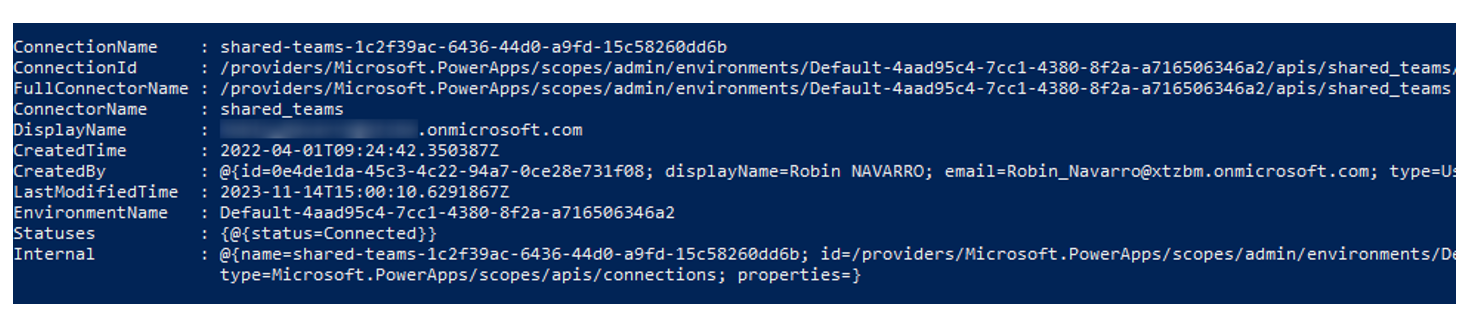
- Display all native connections in your default environment:
Get-AdminPowerAppEnvironment -Default | Get-AdminPowerAppConnection
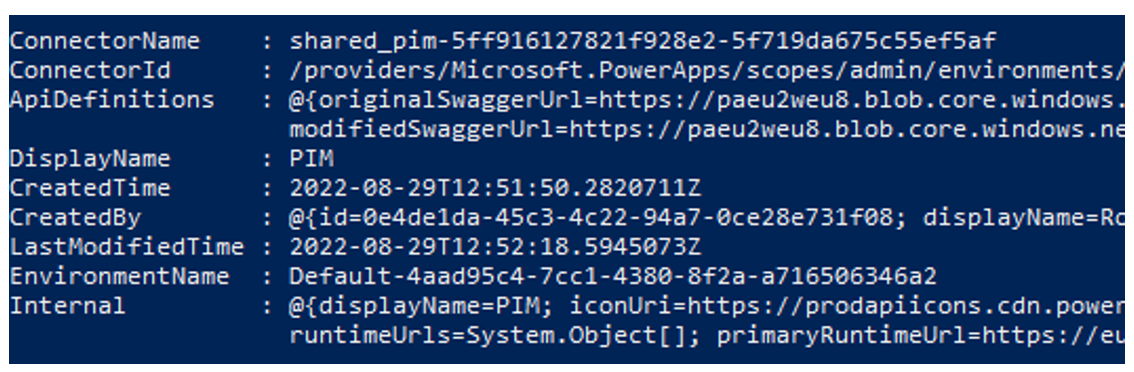
- Display all custom connectors in the tenant:
Get-AdminPowerAppConnector
PowerShell in Power Platform: Over to You!
Integrating PowerShell into Power Platform is a powerful combination for users who want to optimize their experience and maximize the efficiency of their operations.
Dedicated cmdlets provide extensive flexibility and automation, enabling you to perform complex tasks, accurately manage resources, and get detailed information about what is happening in your environments.
PowerShell is an indispensable ally in the arsenal of Power Platform users, whether for automating laborious processes, extending functionality beyond the capabilities of Power Apps Studio, or recovering critical elements after unintended deletion.
However, it is important to stress the importance of thoroughly understanding cmdlets and their implications. Proper training will enable users to get the most out of this dynamic duo.
This post provides readers with an overview of key PowerShell features by focusing on the most useful commands for everyday use. It’s important to note that other commands are also available, even though they are not used as frequently in everyday operations. Some cmdlets are specifically designed for users (Makers). These provide a full set of features, although not all are as useful as those commonly used.
The potential for evolution is enormous. Since Power Platform is constantly evolving and adding new features, PowerShell integration is set to remain an exciting area with considerable potential for those looking to push the boundaries of creating and managing business solutions.
Would you like to learn more or get some expert help? Contact us!