Azure Container Apps: A simplified solution for hosting containerized applications Azure Container Apps, as explained by Pierre Chesné in his...
25 November 2024
Lire cet article en Français
Introduction to Azure Container Apps

What Is Azure Container Apps?
Azure Container Apps is an Azure service officially announced at the Microsoft Ignite 2021 event and became generally available (GA) in May 2022.
Azure Container Apps is a serverless application platform service that enables the deployment of containerized applications without managing the underlying infrastructure. It is based on Azure Kubernetes Services (AKS) and simplifies the orchestration of these applications.
The Primary Uses of Azure Container Apps Are Listed Below:
- Web applications and APIs
- Background task processing
- Microservices
- Event-based applications
Azure Container Apps is packaged with Kubernetes Event-driven Autoscaler (KEDA) and an edge HTTP proxy (envoy)
Applications built on Azure Container Apps can dynamically scale based on the following factors:
- HTTP traffic
- Event-driven processing
- CPU or memory load
- Any KEDA-supported scaler
Azure Container Apps also provides a managed version of the Dapr APIs, including Service to Service calls, Pub/Sub, Event Bindings, State Stores, and Actors. See Microsoft’s Roadmap to keep up with developments.
Key Concepts of Azure Container Apps: plans and environments
Azure Container Apps plans : consumption vs. dedicated
Dedicated plan:
The Dedicated plan consists of a series of workload profiles, ranging from the default consumption profile to profiles with dedicated hardware customized for specialized compute needs.
Consumption plan:
The Consumption plan features a serverless architecture that allows your applications to scale on demand, including down to zero, and charges only for active applications. This plan is ideal when specific hardware requirements are not necessary.
To find out more, visit https://learn.microsoft.com/en-us/azure/container-apps/workload-profiles-overview
Understanding Azure Container Apps Environments: network, logs, and VNet
A Container Apps environment is a secure perimeter around one or more containerized applications and tasks.
It is associated with a virtual network automatically managed by Azure Container Apps by default but can be customized with its own VNet/subnet for advanced configurations (Bastion, Private Endpoint, etc.).
When multiple containerized applications are in the same environment, they share the same virtual network and send their logs to the same location.
The Container Apps Environment is the infrastructure (AKS) used to deploy containerized applications (Linux only).
The following elements are configured when deploying a Container Apps Environment:
- Zone redundancy (only when integrated with a VNet)
- Workload profiles (plans)
- Log monitoring (Azure Log Analytics, Azure Monitor, or no log storage)
- Networking, depending on whether you need to integrate a virtual network or expose the virtual IP externally (internal/external)
You can use one or more Container Apps environments depending on your needs.
When should I use one or more Azure Container Apps environments?
It makes sense to use a single environment for:
- Grouping different applications within the same VNet.
- Sharing the Dapr configuration between multiple applications.
- Centralizing logs.
Choosing multiple environments is recommended for:
- Isolating resources (compute, memory, etc.).
- Separating Dapr APIs.
- Ensuring complete isolation (team, test environments, production, etc.).
Here are the properties of a Container Apps Environment (Az CLI):
Some interesting information to note:
- The staticIp (the virtual IP)
- The workloadProfiles
- The defaultDomain (blabla-random.region.azurecontainerapps.io)
Each container in the environment will be named containername.blabla-random.region.azurecontainerapps.io
Deploying an Azure Container Apps Environment in a VNet
Sample code for deployment in an existing VNet with internal access only:
- Create a resource group
- Create a VNet and three subnets (including one with a Delegate to Microsoft.App/environments)
- Create a Log Analytics workspace
- Retrieve the ID and a Log Analytics workspace key
- Obtain the subnet ID to join the Container Apps Environment
- Create the Container Apps Environment (https://learn.microsoft.com/en-us/cli/azure/containerapp/env?view=azure-cli-latest#az-containerapp-env-create)
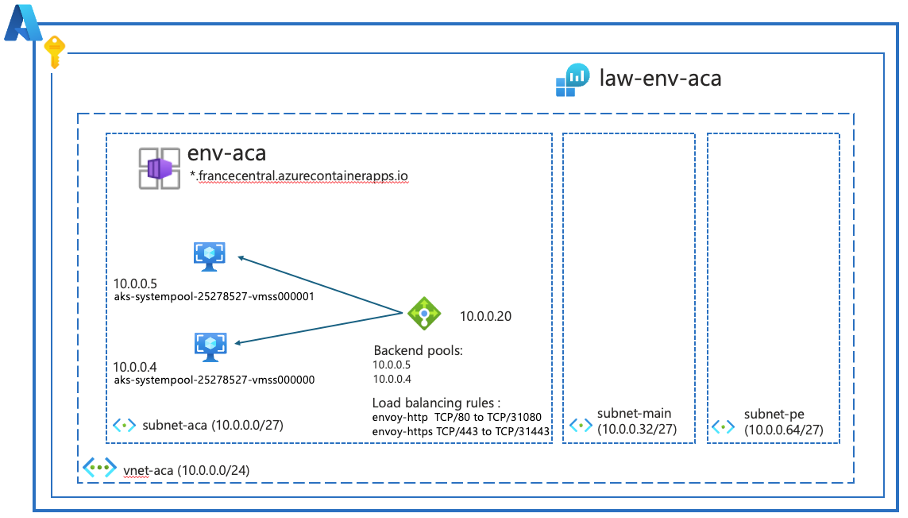
At the end of the run, the following resources should be created:
- Internal Load Balancer visible in a resource group named: ME_env-aca_rg-aca-az-cli_francecentral
- Log Analytics workspace
- VNet/subnet
- Container Apps Environment
The only thing visible in the console is:
- The internal loadbalancer in a resource group ME_env-aca_rg-aca-az-cli_francecentral (this should be familiar to the AKS Jedi :-))
- the Log Analytics workspace
- VNet/subnet
- Container Apps Environment
Only containers hosted in the subnet-main and subnet-pe or the same environment can access the network in this configuration. The two node pools are invisible!
Container Management with Azure Container Apps
Azure Container Apps manages the details of Kubernetes and container orchestration for you. Azure Container Apps containers can run in your chosen engine, programming language, or development environment.
Azure Container Apps only supports:
- Any Linux-based x86-64 (Linux/amd64) container image
- Containers from any public or private container registry
- Sidecar and init containersAzure Container Apps limitations: https://learn.microsoft.com/en-us/azure/container-apps/quotas
When using a Consumption plan, the total CPU and memory allocated to all containers in a container application must match one of the following combinations :

For reference, the limit is 100 cores per environment (with replicas)
Deployment Methods for Azure Container Apps
Available Deployment Options
You can deploy Azure Container Apps from multiple sources:
- Container image (portal or command line)
- Local code
- GitHub repository
- Integrated development environment (IDE) such as Visual Studio, Visual Studio Code, with the Azure Account extension, Azure Container Apps, Docker, etc.
- Artifact file (JAR/Maven file), this feature is currently in preview
Deployment via Local Code and GitHub Repo
If you choose local code or GitHub repository deployment, you can deploy an application without a Docker file with the az containerapp up command. This command is compatible with the following languages: .NET, Node.js, PHP, and Python. The image is created using the Buildpackstool.
Here’s an az containerapp up sample code (suggested in the Microsoft doc) with local code (node.js):
https://learn.microsoft.com/en-us/azure/container-apps/containerapp-up
This code deploys:
- a Resource Group
- a Log Analytics workspace
- a Container Apps Environment
- a Container App
- a hidden microsoft.app/builders resource for the image created by Buildpacks

Example Az CLI code to deploy an application from a public image using the az containerapp create command
This code deploys:
- a resource group
- a Container Apps Environment without Log Analytics workspace
- Azure Container Apps from a public image exposed on the Internet
It is also possible to deploy an application using a YAML file.
https://learn.microsoft.com/en-us/azure/container-instances/container-instances-reference-yaml
The equivalent of the above command
This Is the YAML File You Need to Create:
Deployment via the Azure Portal
There are two main steps to deploying from the Azure portal:
- Create the Container Apps environment
- Create the Container App
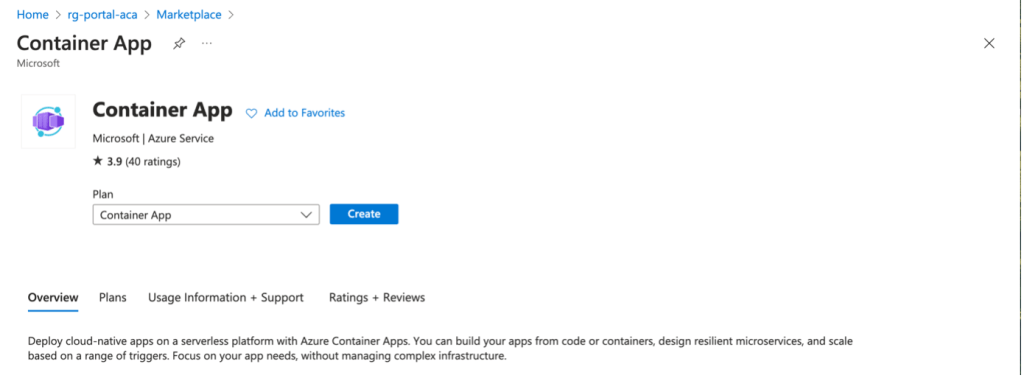
Search for Container App in the Azure marketplace

Classic: subscription; resource group; application name
In this example, we have an image in our own Azure Container Registry
However, if there is no container image, there are two options:
– Code in a GitHub repo (image generated in a Github Action workflow with Buildpacks)
– Local artifact (preview), .jar & .war only

Next, click “Create new” to create a Container Apps Environment.

Add a name for the Container Apps Environment resource if you want zone redundancy. (in a vNet environment only)
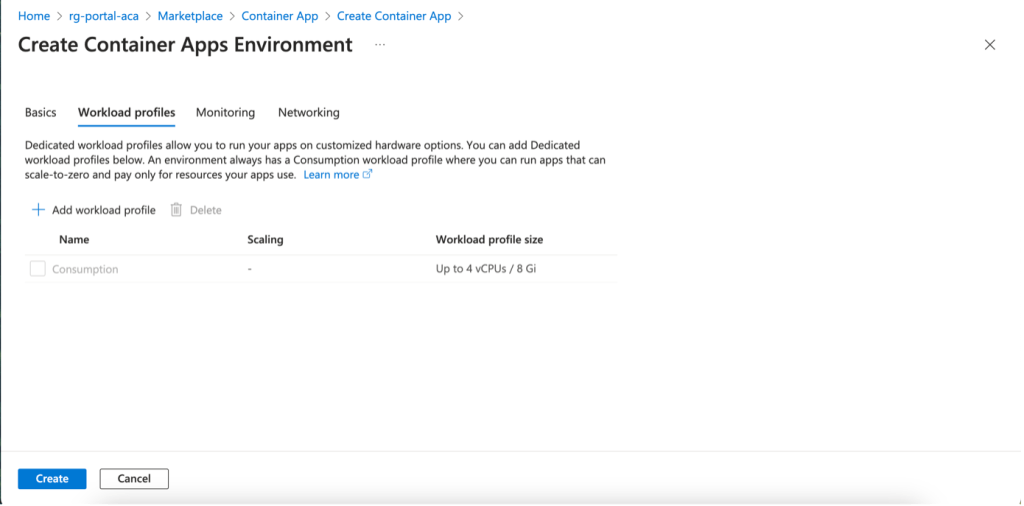
Choosing Workload Profiles: Consumption vs. Dedicated
The Azure Container Apps Environment uses a Consumption plan by default. If you choose a Dedicated plan, you must specify a Workload Profile Name and Workload Profile Size (using D & E series VM profiles) and set the Autoscaling Instance Count Range (between 0 and 50 instances).
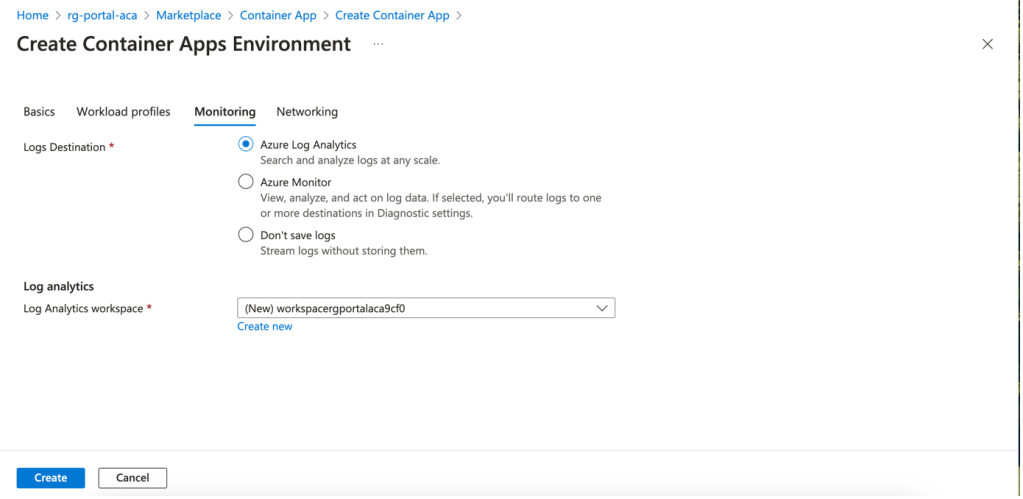
Two Monitoring Options
You can choose which Log Analytics workspace logs go to by default or create your own.
Logs can be sent to:
- a storage account
- and Event Hub
- third-party solutions (Datadog; Elastic; Logs.io; etc.
- a Log Analytics workspace

Azure Container Apps run in an environment with its own virtual network (VNet).
By default, your Container App environment includes an automatically created VNet. When you create an environment, you can specify an existing VNet to give you more control over your network. You can’t change the network type after you set up an environment with a generated or existing VNet.
Choose an existing VNet if you need additional Azure networking features, such as:
- Application Gateway integration
- network security groups
- communication with resources behind private endpoints in your virtual network
- etc.
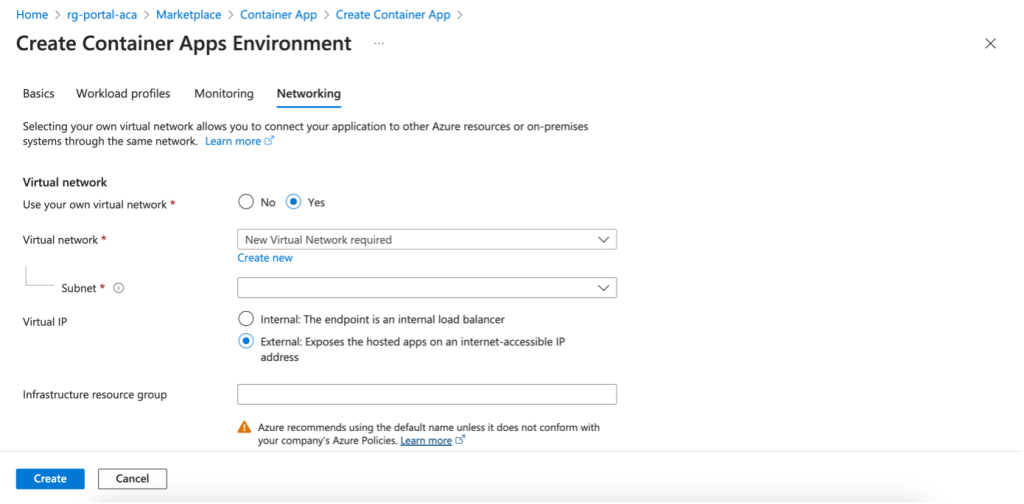
Selecting the Virtual IP Address (VIP): Internal vs. External
When configuring your network, you can create a VNet through the Azure wizard, but this limits the addressing block to 10.0.0.0/16. We recommend creating the VNet/subnet upstream for greater flexibility (see network requirements: https://learn.microsoft.com/en-us/azure/container-apps/networking?tabs=consumption-only-env%2Cazure-cli).
Internal: a load balancer is used and is only visible internally.
External: a public IP address and a load balancer are created for external access.
As with the AKS service, you can customize the Resource Group name to avoid the default format
Me_environment_resourcegroupname_region for the resource group of resources. You can now give this a name.
Only a load balancer will be deployed and visible if you choose Internal.
If you choose External, only a public IP address and a load balancer will be deployed and visible.

After configuring the environment, you can move on to the Container App.
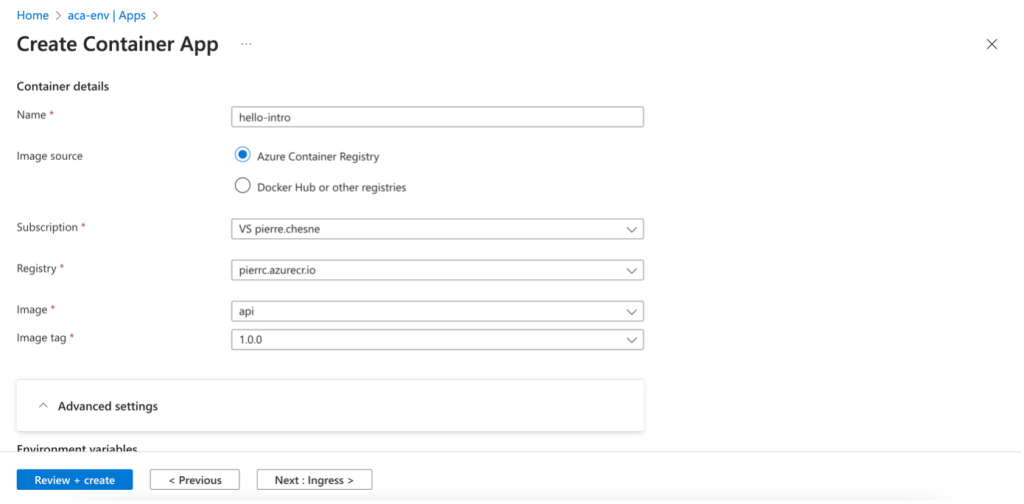
In this example, we’re using an image from an Azure Container registry. You must enable the Admin Credentials option in the settings to access this registry.
You can also retrieve images from a public registry (e.g., Docker Hub) or a private registry (registry login server/registry user name/registry password)
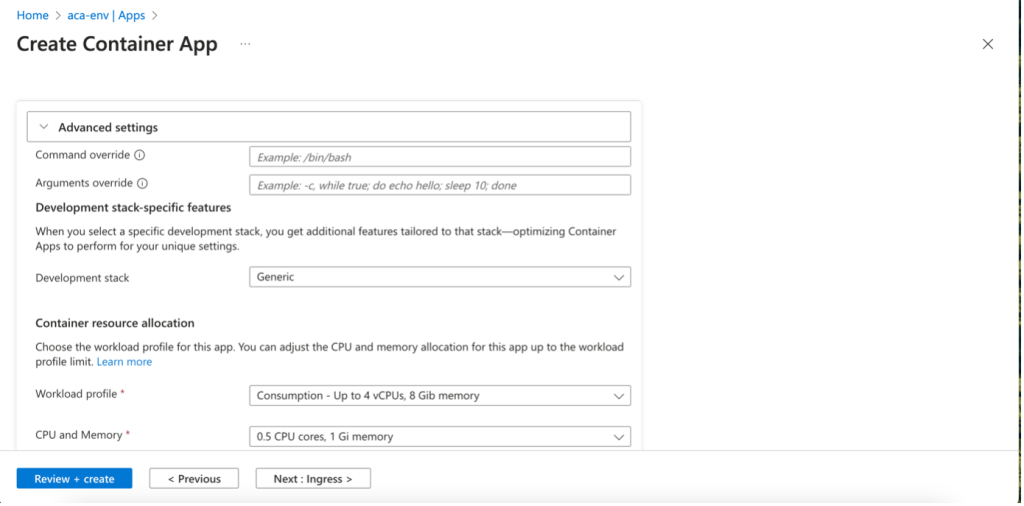

In Advanced settings, you can:
- Override the image’s ENTRYPOINT
- Override the image CMD
- Add additional features depending on the application language (Java, .NET, or generic). For example, for JAVA, we can get the Java Virtual Machine (JVM) metrics
- Retrieve Workload Profiles (Dedicated/Consumption plans) and set CPU/Memory parameters for the Consumption plan
- Add environment variables (key/value), e.g., database connection
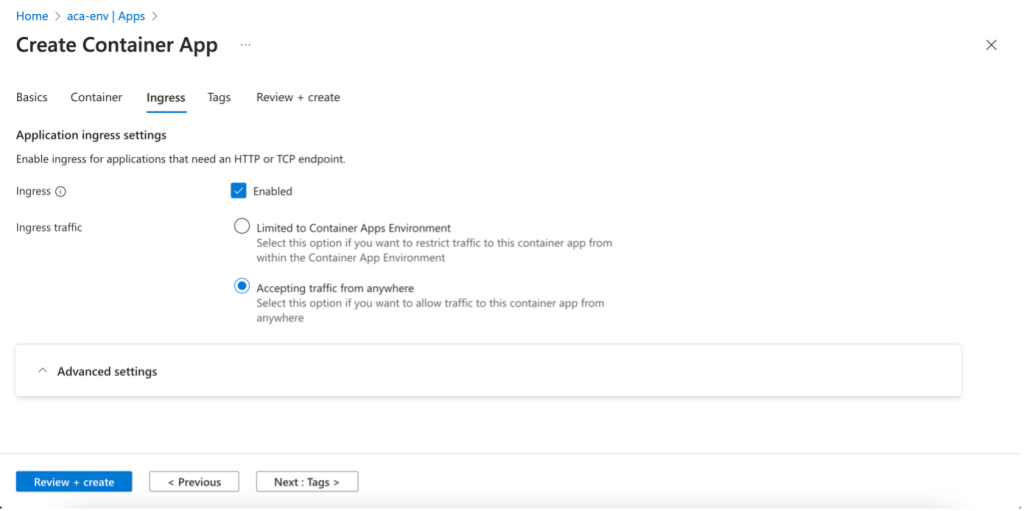
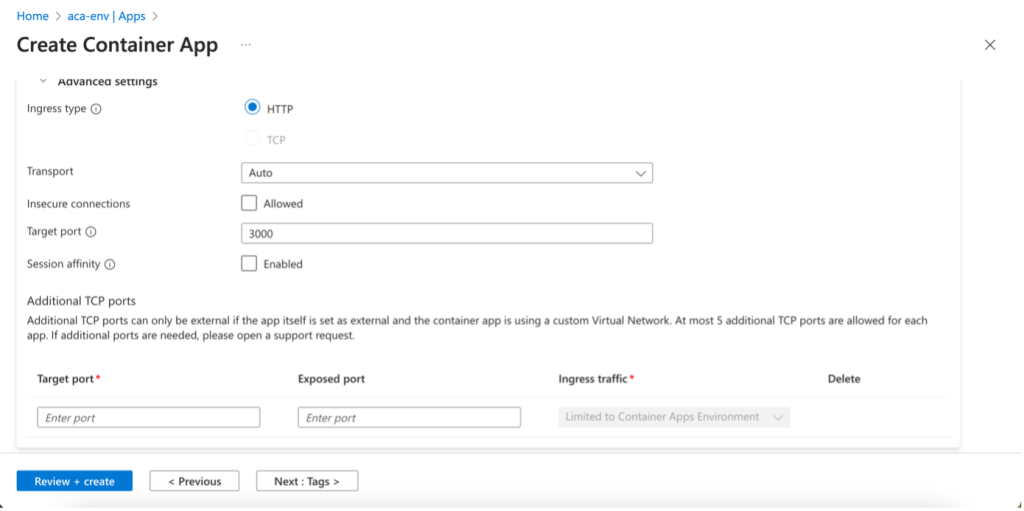
- In this example, we’re in a scenario where we don’t have a VNet dedicated to our environment, so we enable ingress and Accepting traffic from anywhere. Our App Container will only be accessible via HTTP (TCP is only available in Container Apps environments configured with a custom VNet)
- Transport is set to (HTTP/1 or HTTP/2)
- For Insecure connections, ingress accepts HTTP requests on port 80 by default and automatically redirects them to HTTPS on port 443.
- Unsecure HTTP (port 80) connections are redirected to HTTPS (port 443) unless disabled.
- Target port is the port on which the container listens and receives traffic
- Session affinity routes HTTP requests from the same client to the same replica (managed by HTTP cookies)
- Finally, additional TCP ports can be exposed to allow applications to accept TCP connections on multiple ports.


Azure Container Apps Deployment Guide: An Example With VNet and Internal Access
As shown above, there are several deployment methods:
- Azure portal
- IDE with the right extensions (Visual Studio/Visual Studio Code)
- Local or (GitHub) repository code
- Command line
- Azure CLI
- Azure PowerShell
- Azure Developer CLI (AZD https://learn.microsoft.com/fr-fr/azure/developer/azure-developer-cli/)
- Infrastructure as Code
- ARM/Bicep template (e.g., Hello-World ./Bicep)
- Terraform (e.g.: Hello-World Terraform ./Terraform)
To deploy Azure Container Apps infrastructures in AZ CLI, your CLI must be up to date. To update it and install the extensions (Microsoft.App & Microsoft.OperationalInsights):
Automated Deployment Script
As a bonus, here’s a sample script (./Az-Cli/aca-network.sh) to automatically deploy
- a resource group
- a network
- VNet
- three subnets, including one in delegated Microsoft.App/environments for the Container Apps Environment
- PostgreSQL
- Postgres Flexible Server
- a database
- two tables
- private endpoint (subnet pe)
- private-dns zone with records
- Azure Container Apps Environment
- Log Analytics workspace
- environment within the subnet
- private-dns zone with records
- Azure Container registry
- container registry
- build & push of an image (./Src)
- managed Identity
- assign Identity -> Container registry
- assign Role AcrPull
- Azure Container App
secrets/environment variables (database connection)

Let’s test the platform:
To test the application:
- In the Azure console, go to Container App in the left bar
Monitoring -> Log Stream

-
- The application is connected to the database
Monitoring -> Console
-
- The application is running, data can be retrieved and incremented (curl command)
- From the rebound VM
Before connecting to the rebound VM, you must retrieve and copy the Application Url

From the rebound VM

- Name resolution test
- Application test (note: the application only responds in https!)
In Conclusion
Microsoft offers many options for teams to build and deploy native and containerized cloud applications on Azure. There’s no such thing as a perfect solution for every use case and every team.
Azure offers a variety of options for building and deploying native cloud applications. While there is no one-size-fits-all solution, Azure Container Apps stands out as a fully managed microservices solution perfect for teams looking for a lightweight alternative to Kubernetes without the complexity of cluster management.
In this post, we’ve only covered a small portion of the features of Azure Container Apps. In the next post in this series, we will look at:
- Azure Functions on Azure Container Apps
- Container Apps jobs
- Revision management
- Replica management/Scale
- Observability
- Authentication (identity provider)
- Secrets
- Dapr
- Networking/Ingress
- Continuous Deployment
- etc.